You might consider including a mid-term feedback survey in your course. Learn more about seeking mid-term feedback from students and the types of questions you might ask in our resource Seeking Mid-Term Feedback from Students.
To make it easier for you, LTSI-TIL has some mid-term feedback questions that you can copy into your course from the Brightspace Learning Object Repository. The “Mid-Term Feedback Question Collection” includes a selection of written response questions that you might ask your students to collect mid-term feedback. Pick and choose a few questions that fit best for your course.
LTSI-TIL has also created a complete Mid-Term Feedback Survey package that you can download and use in your Brightspace course. If you are interested in using our survey rather than creating your own, access our help post: How do I use the Mid-Term Feedback Survey package?
Importing the mid-term feedback questions from the LOR (Learning Online Repository)
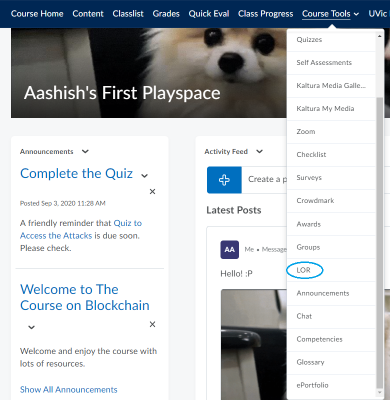
- Under course tools in the navigation bar, select LOR in the drop-down list.
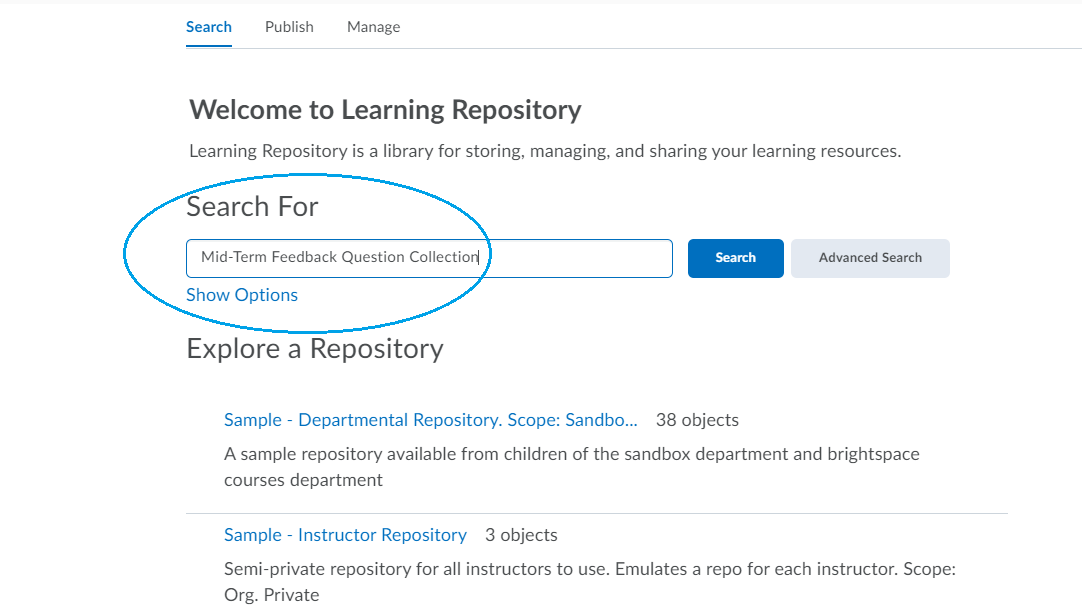
- Use the search tab to find the quiz you want to import from LOR. In this case search: “Mid-Term Feedback Question Collection”
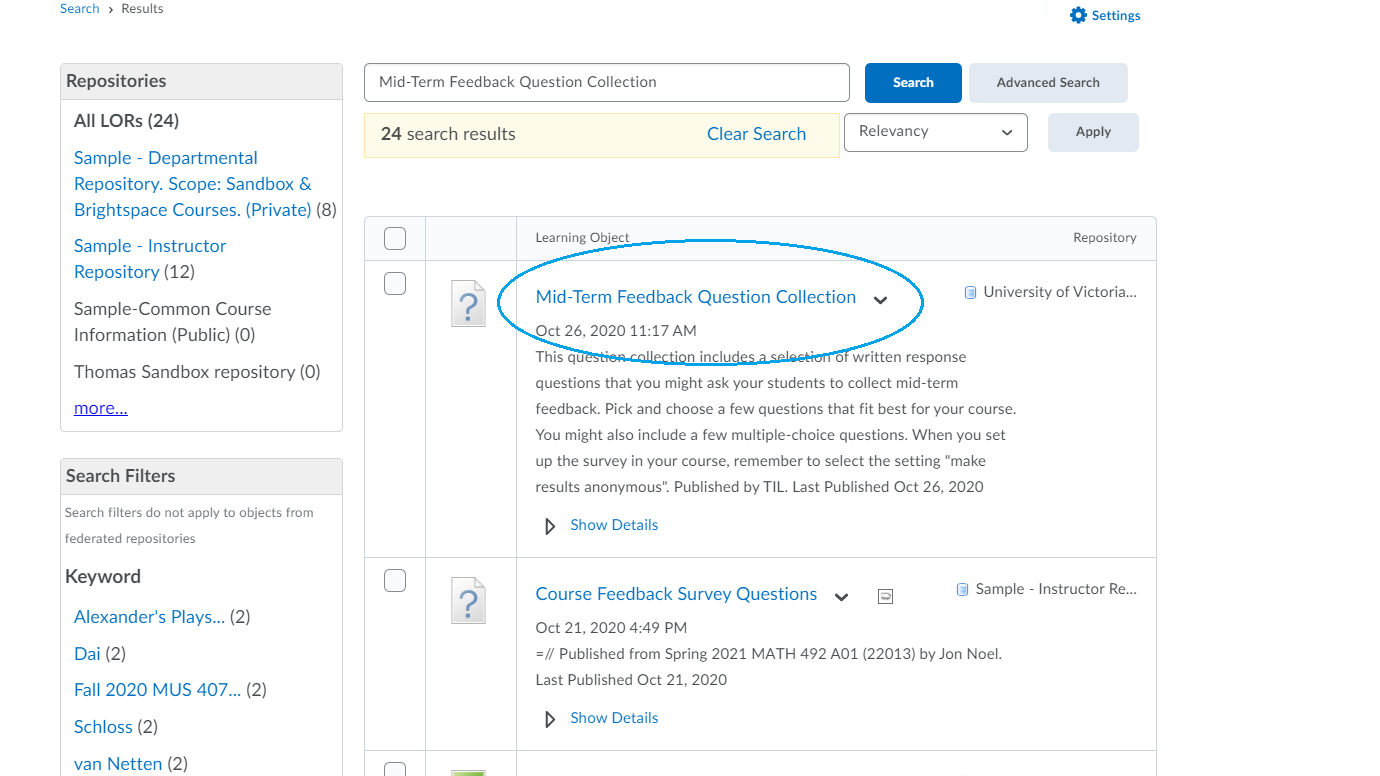
- Select the learning object: “Mid-Term Feedback Question Collection.”
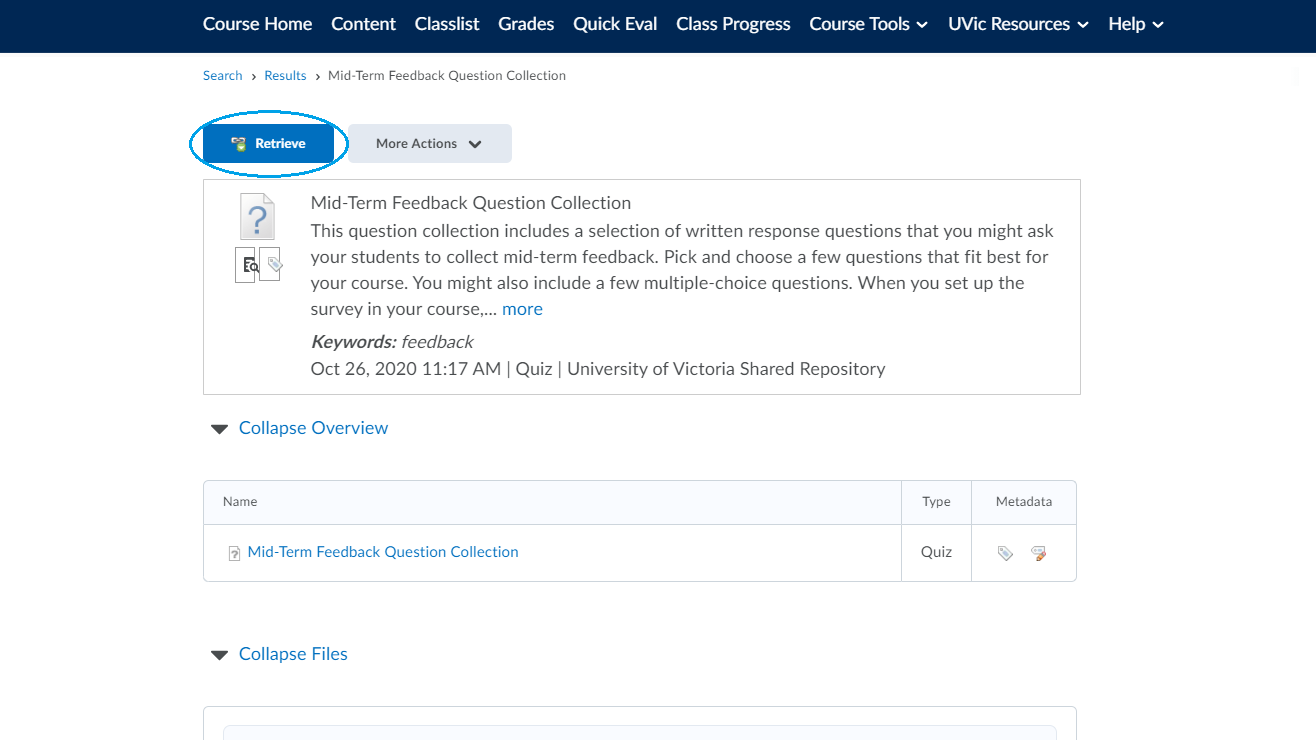
- Once the item is selected, click Retrieve.
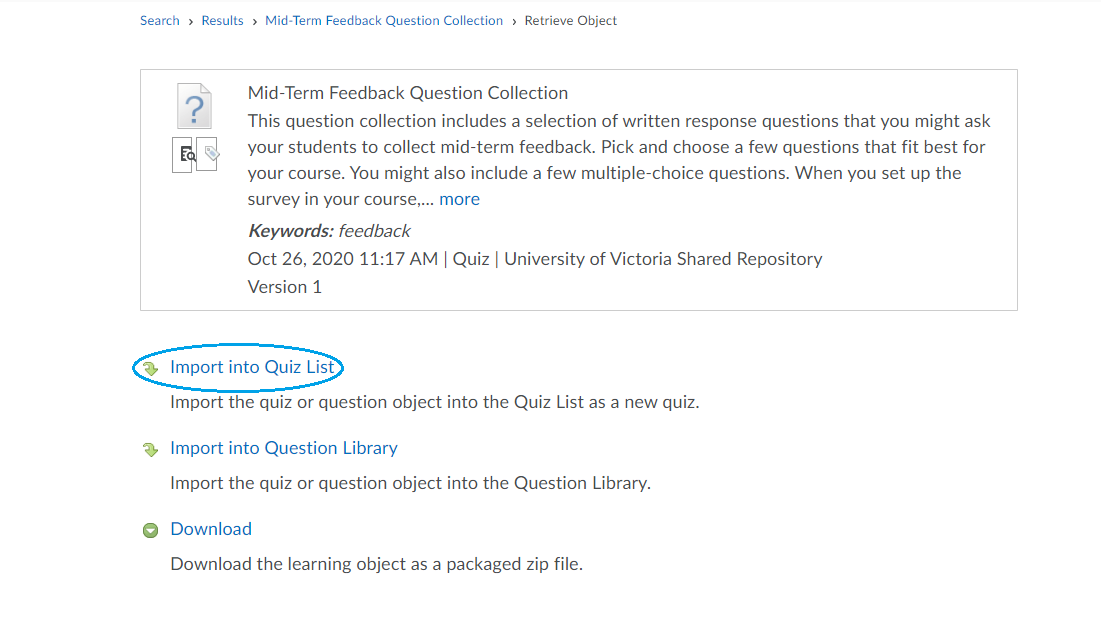
5. It will ask you whether you want to retrieve it as a new quiz or want to add the question/questions to an existing quiz. Select Import into Question Library to add it into your question bank.
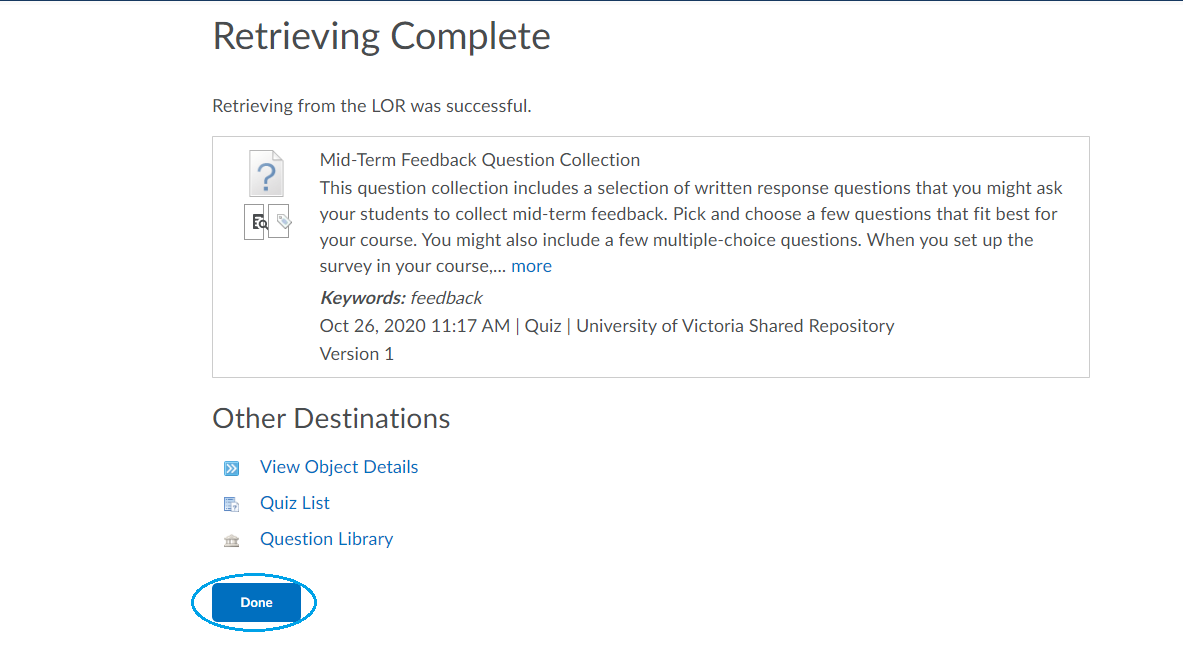
6. After waiting for it to retrieve, click “Done” at the Retrieving Complete page.
Add the mid-term feedback questions to a survey
This section explains how to add the mid-term feedback questions to a survey in your course (after importing the questions to your course). When you set up the survey in your course, remember to select the setting “make results anonymous”.
Create a survey with to collect mid-term feedback
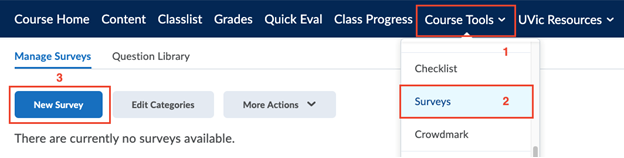
- Under Course Tools on the navigation bar, select Surveys. Once on the Surveys page, select New Survey to start creating.
- Under General of the Properties tab, enter a survey title under Name (we recommend the title “Mid-Term Feedback” ). Check the box under Anonymous to make results from the survey anonymous (we usually recommend collecting anonymous mid-term feedback). Once the survey is made anonymous, it cannot be undone.
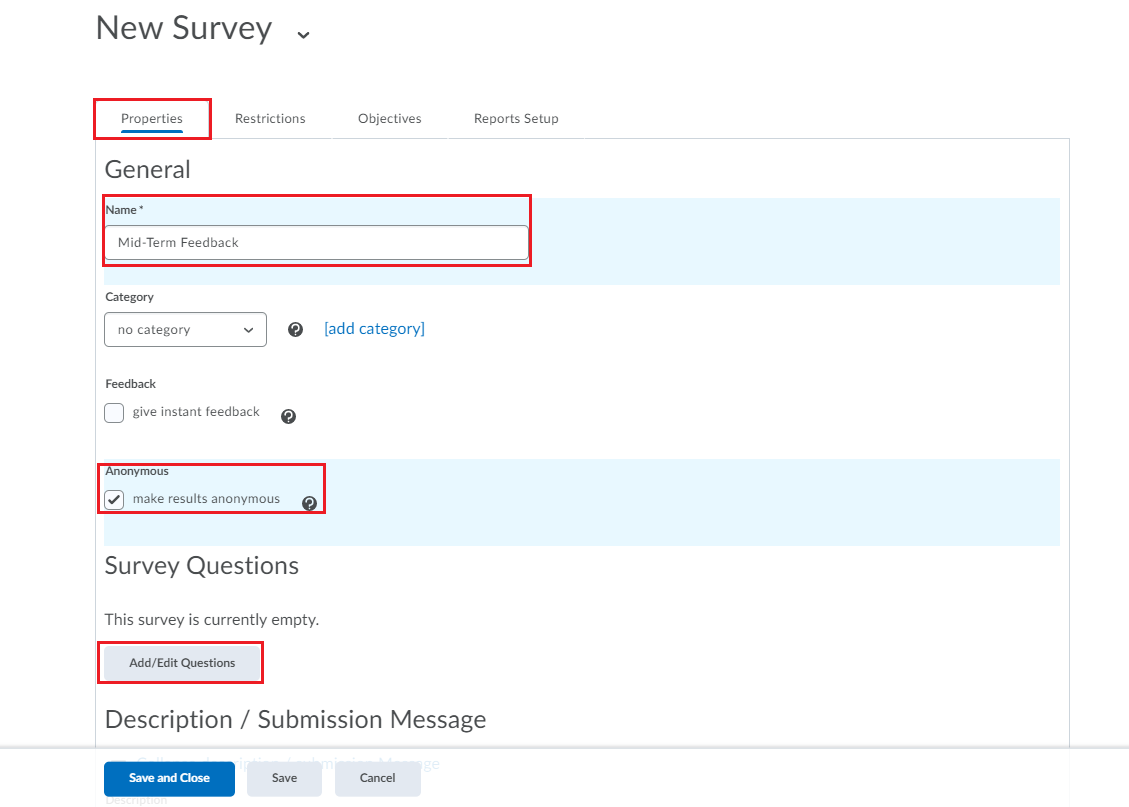
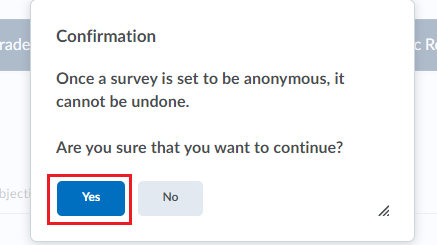
- Select Add/Edit Questions. If you selected to make results anonymous, a pop-up window will appear entitled “Confirmation.” Select Yes to verify that you understand that results will be made permanently anonymous to proceed.
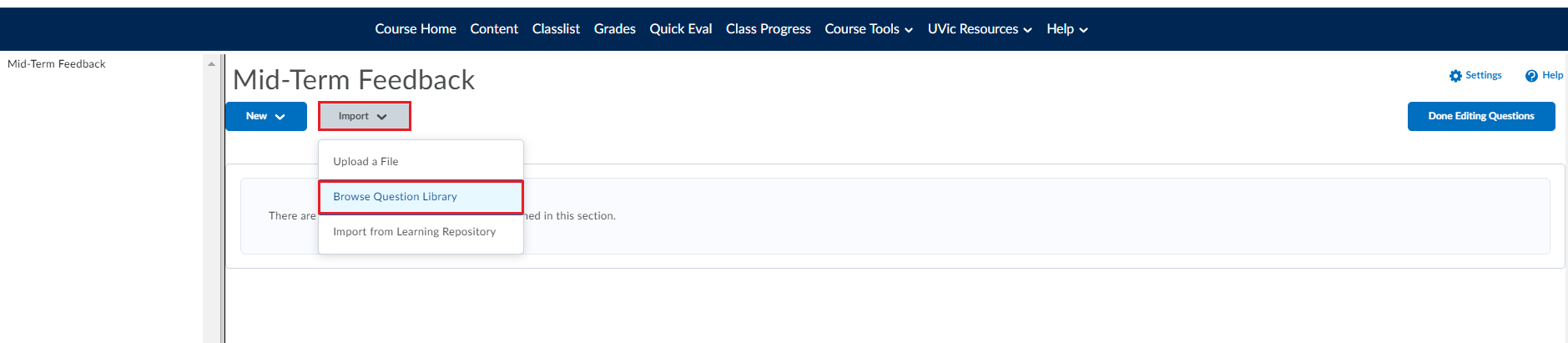
- Select Import, then Browse Question Library.
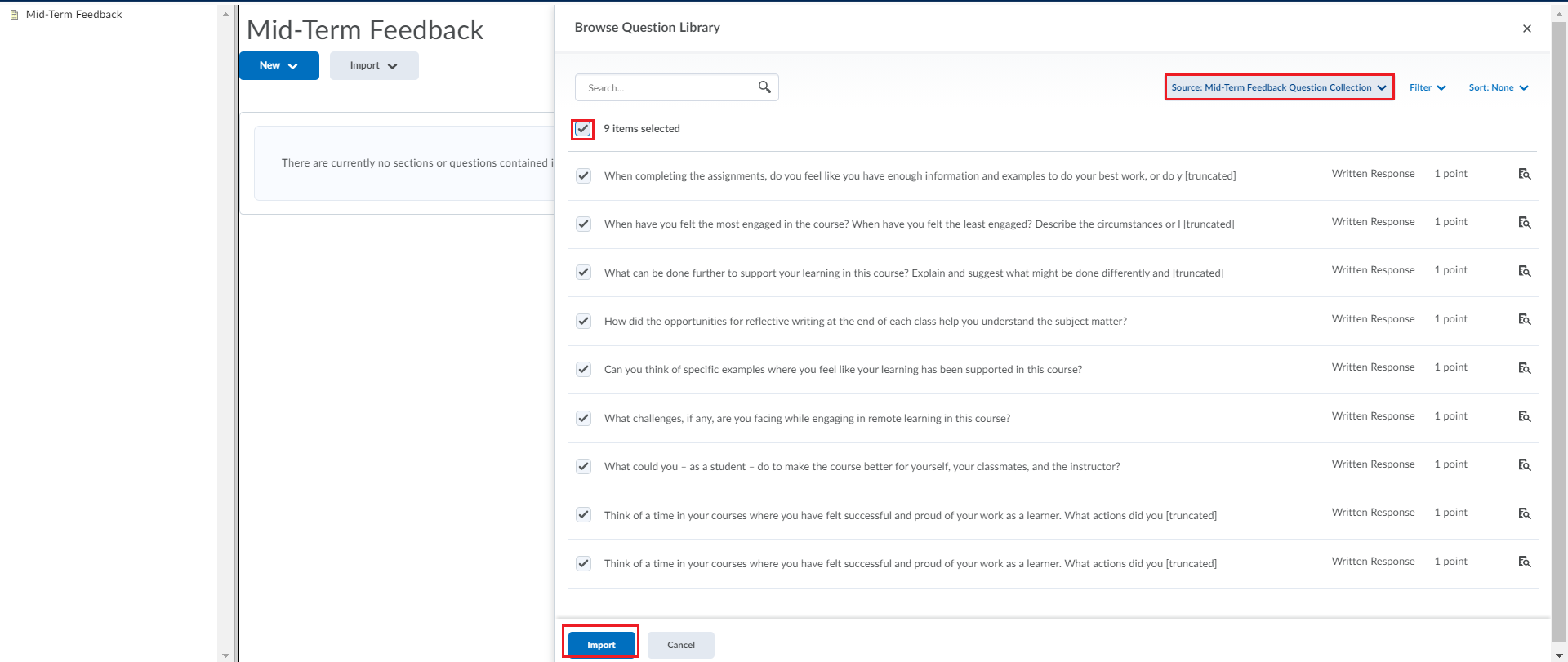
5. In the drop-down menu for Source, select Mid-Term Feedback Question Collection that was recently imported from the LOR. Select the box to the left of each question that you would like to add to the survey. Or, select the box at the top left to import all the questions, as shown in the picture below. Click Import.
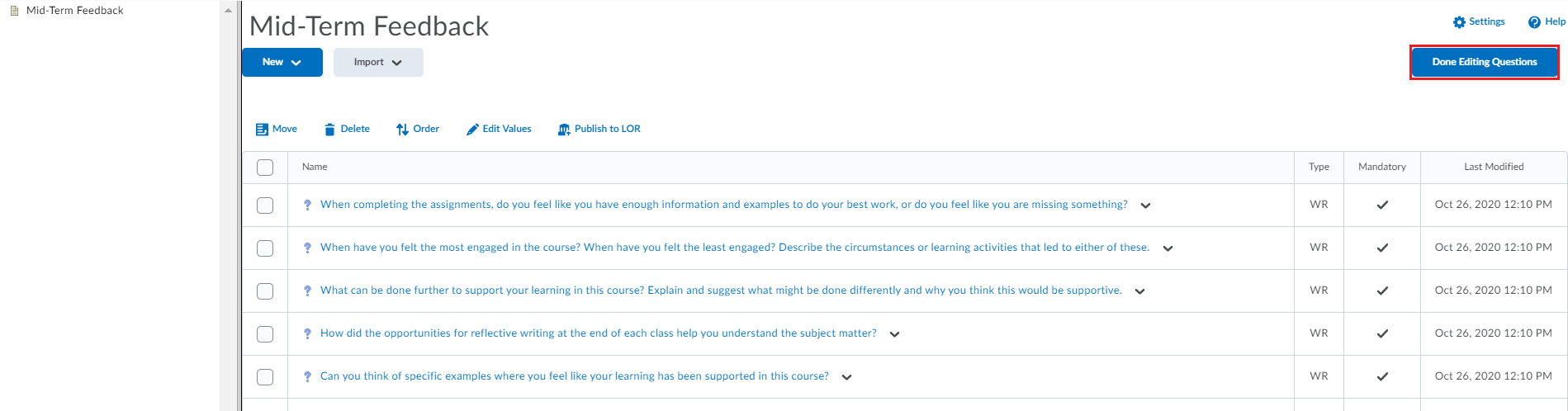
6. Once finished, click on Done Editing Questions to return to the survey settings.
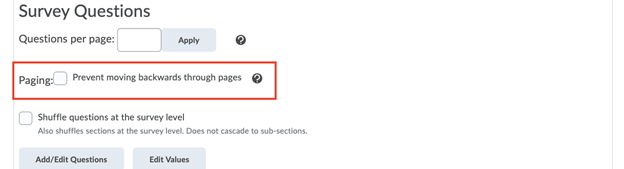
7. Under Paging, you may choose to check the box for Prevent moving backwards through pages.
8. Add a survey description under the Description section (also turn on the description by selecting on). In the description, tell your students:
- why you are collecting mid-term feedback (purpose of the activity)
- how long the feedback survey will take & when it will be avaliable
- who will see the results of the feedback survey
- that their responses are anonymous (if you selected make results anonymous)
- how you will use the results of feedback survey. For example: “Thank you for taking the time to provide thoughtful feedback. I welcome and will consider all suggestions regarding how your learning can be supported for the remainder of the course. It may not be possible to implement changes to course structure this term, however, your suggestions will help me improve the course for the future.”
9. Under the Restrictions tab, uncheck the Hide from Users box to make it visible to learners.
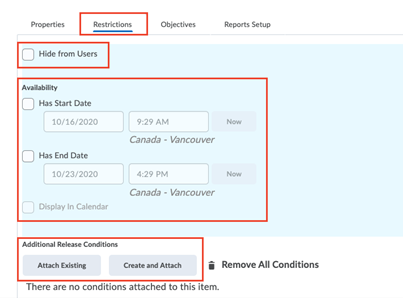
10. Edit Availability and add Release Conditions as necessary (ex. Only to be released when all assignments before exam is completed) .
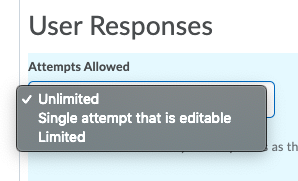
11. Under User Responses, click the drop-down menu under Attempts Allowed to “Unlimited”, “Single attempt that is editable”, or “Limited.”
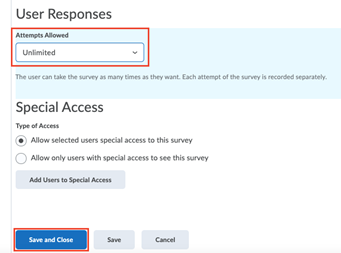
12. Click Save and Close to return to the survey homepage.

13. Click on the drop-down menu and select Preview to preview the learner view of the survey.