If a student finished a quiz attempt but did not submit it, the instructor can submit the quiz on the student’s behalf in order to grade it.
To submit an in-progress quiz on behalf of a learner:
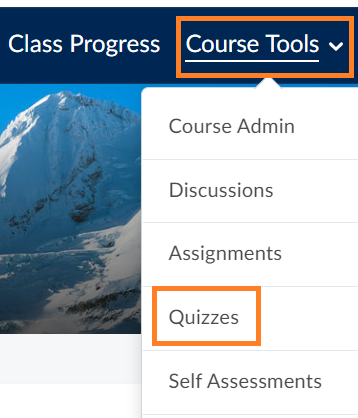
Step 1: Navigate to the Quiz Tool by selecting Course Tools in the blue navigation bar, then selecting Quizzes.
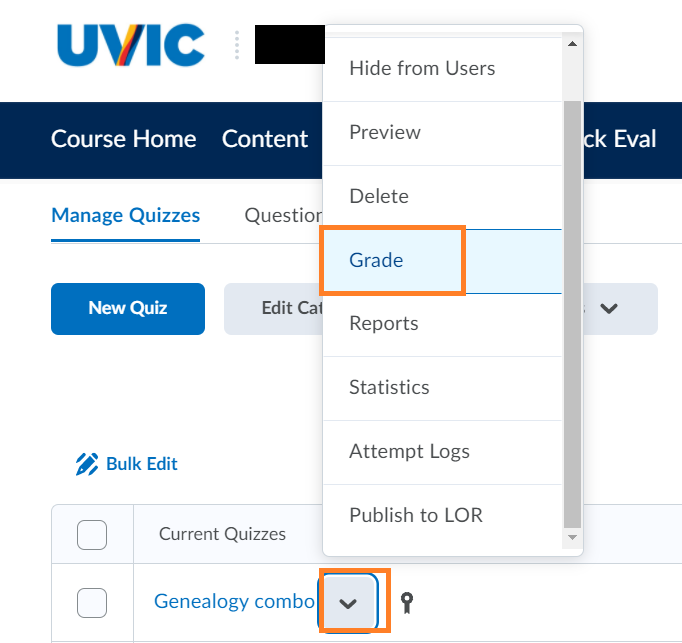
Step 2: Navigate to the quiz you would like to submit the attempt for, click the down arrow beside the specific quiz, and select Grade.
Step 3: Click on the blue text “Show Search Options.”
Step 4: Go to the Restrict to drop-down menu, select “Users with attempts in progress” and then click the magnifying glass to search.

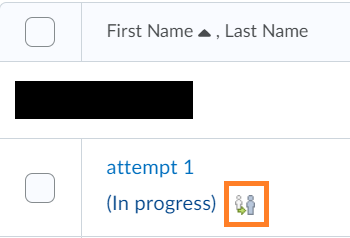
Step 5: Click the impersonate icon beside the attempt of the learner.
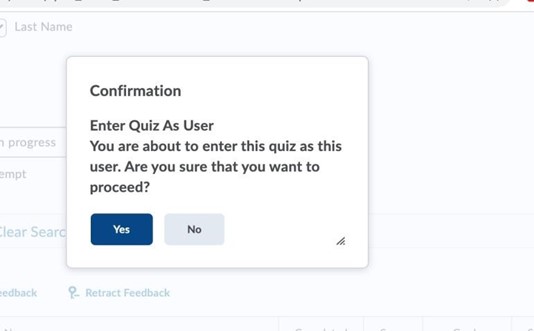
Step 6: A pop-up box will appear asking you to confirm if you would like to proceed. Click Yes.
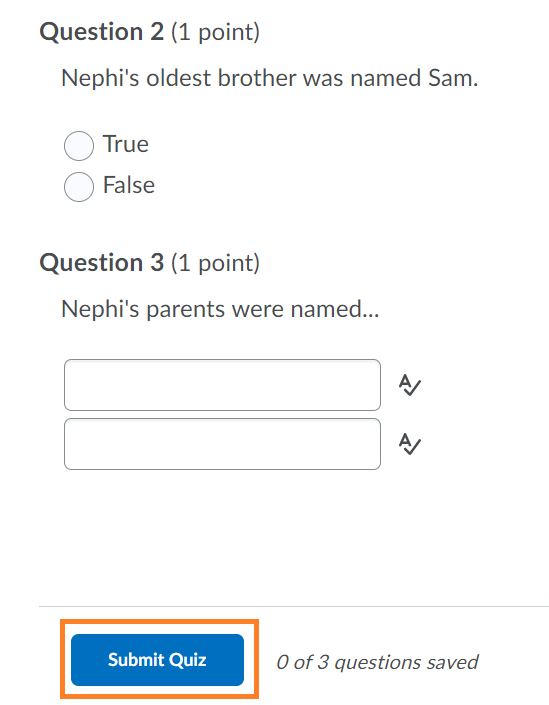
Step 7: Scroll to the bottom of the quiz and click the blue Submit quiz button.
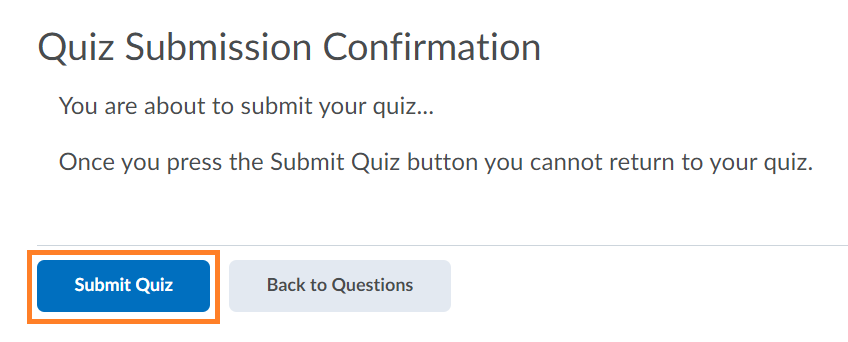
Step 8: A confirmation window will appear. Select Submit quiz again to submit the learner quiz attempt.
Related Resources: