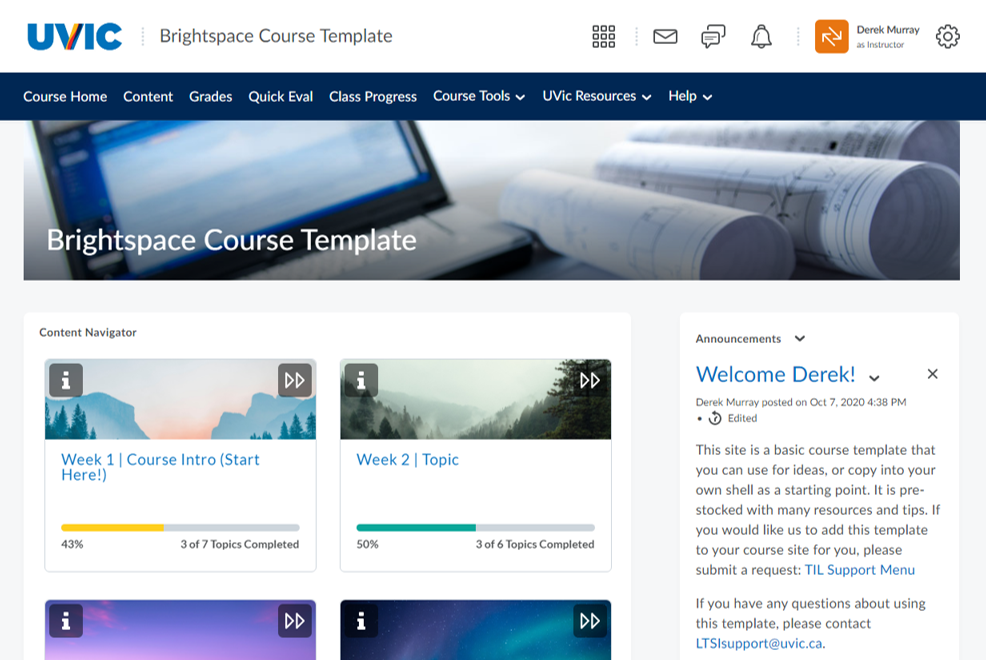
Customize your course by picking a course homepage. There are at least four to choose from:
- Standard (with content navigator)
- Activity Feed ( ‘social media’ style homepage)
- Visual Table of Contents (topics look like cards with flippable descriptions)
- Grid Table of Contents (same as Visual except in a non-linear format)
Learn about the homepage options and how to change your homepage in our 7-minute tutorial (or read instructions in the section below):
How to change your homepage
Explore all four homepages and pick the one that best suits your course. Follow these steps to customize your course homepage:
- On the bottom right of your course site, click the ellipsis.
- Choose Manage Homepage.
- Choose a homepage from the drop down list and click apply.
Examples
Content Navigator Homepage (Default)
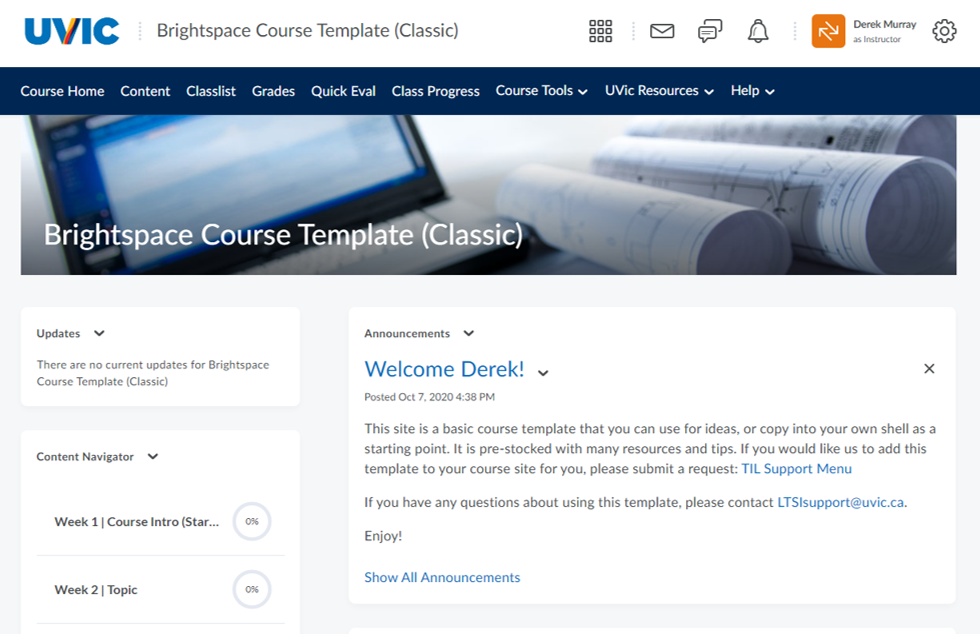
This is the default Content Navigator homepage. It has lots of room for announcements. A content navigator on the side gives a list of major topics.
Visual Grid HomePage
The visual grid homepage shows each topic as a “flippable” card – with the topic name and a customizable photo on one side and the module description on the other. Note: This homepage is not recommended if you are making use of submodules.