Always check your syllabus and carefully note what assignments, quizzes, and activities are due in your course and when. If you are having difficulty locating an assignment in your course, contact your instructor.
Depending on how your instructor has organized their course, assignments can be found in two places on Brightspace:
- In their respective modules in the Content tool
- Via the Course Tools > Assignments from the navigation bar
Navigating Course Content
In addition to your syllabus, you will often find the link to your assignment under the Content tab in the navigation bar. Content may be organized differently in different courses, so be sure you check your syllabus, course announcements, with your instructor, or a peer to find out how your assignments will be posted.

Figure 1
If you cannot find your assignment under the Content tab, look for it under Assignments, which you can access under Course Tools in the navigation bar. This is where you will find a list of all available assignments in your course.
Shortcut: Access your Course Tools
If you are looking for a particular assignment, you might use the Course Tool menu to get to it quickly. Use this as a quick way to navigate. This is not a good way to determine what assignments are due in your course and when (use the syllabus for this).
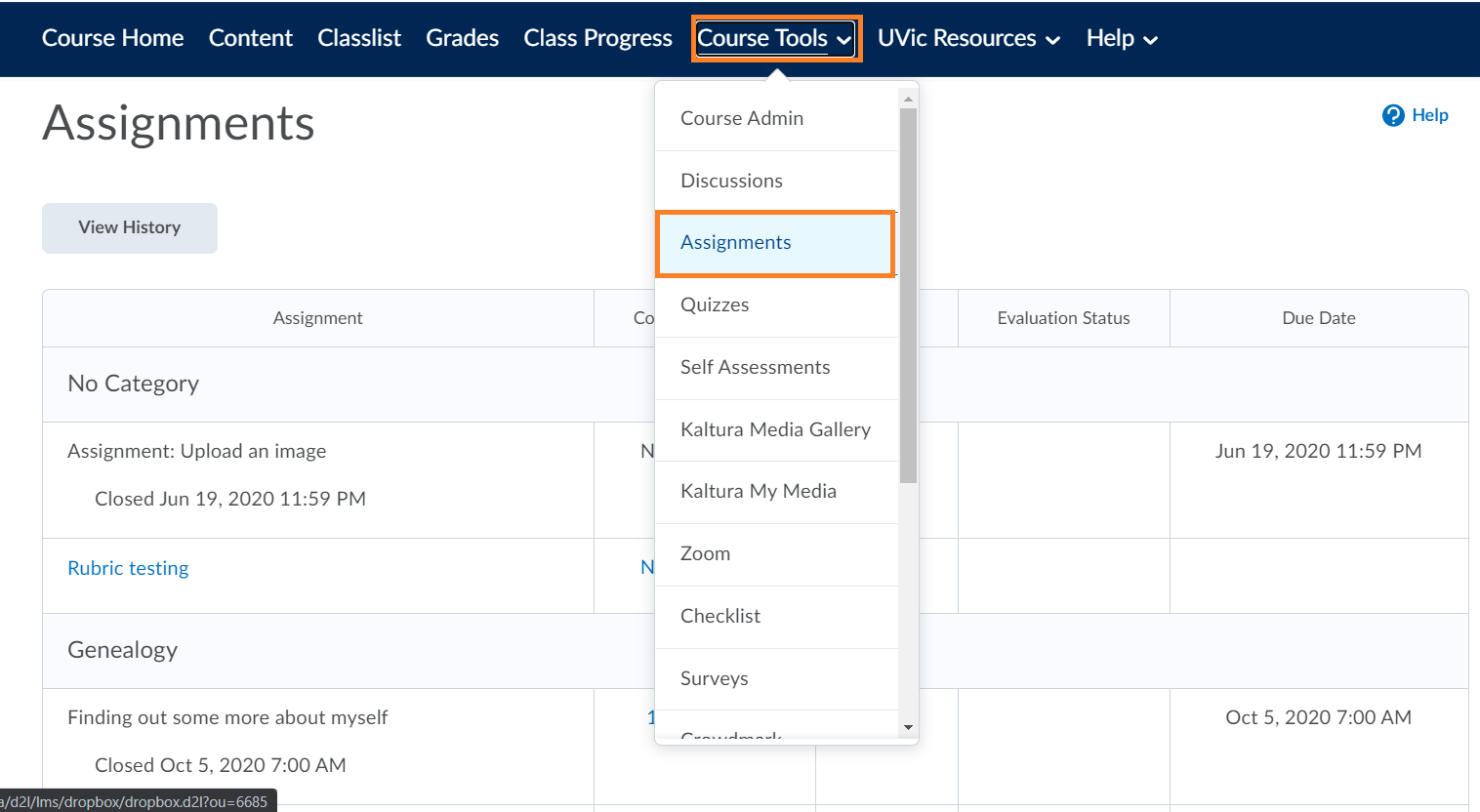
Figure 2
All assignments that are open for submission are clickable blue links. You can click on this link to submit your assignment. See how do I submit an assignment for more information. If you can see your assignment, but you cannot click on it (i.e. it is greyed out), it means your assignment is not yet open, or the deadline has passed.
Once you click on a specific assignment, you will see the following:
- Assignment instructions
- Due date/ other important dates
- your submission options (depending on the assignment, this may be a text submission, a single/multiple file(s), or a specific type of file, such as audio or video, etc.).
If an assignment is meant to be submitted in groups, there will be a general submission page for each of those groups (Figure 3). This means that any member of a group can submit to their respective assignment page, and the final grade is applicable to all group members regardless of which who submitted the file(s). Instructors and/or teaching assistants can modify individual grades as needed.

Figure 3