Creating a Grade Item
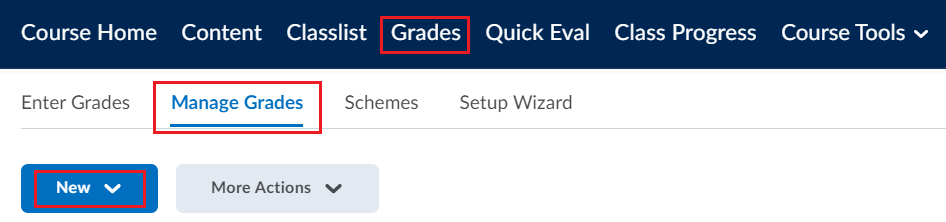
1. Go to your course in Brightspace and click on Grades in the navigation bar.
2. Click on the Manage Grades tab.
3. Click New and select Item from its drop-down menu.
4. Select the Grade Item Type that you would like to assign. Please note that once a grade item has been created, this cannot be modified.
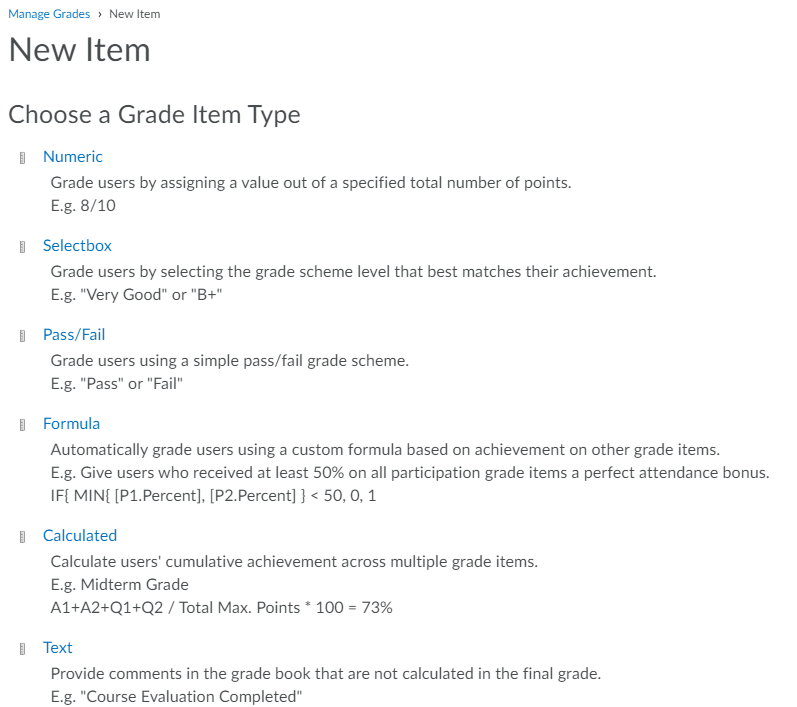
Note: Creating a grade item does not automatically link it to any of your course activities like quizzes or assignments. This must be done manually.
Associating Grade Items with Activities
Note: A ribbon icon ( ) next to an activity name indicates that it is already associated with a grade item in the grade book.
Associating an existing grade book item to an already existing assignment
- In your Brightspace course, navigate to your Assignments page (Course Tools > Assignments) and click the drop-down menu next to the assignment you would like to add to the grade book. Select Edit Assignment.
- Once you are in the assignment editor, click the Grade Out Of box and add a score.
- Select In Grade Book to open the drop-down menu. Because you have already created a grade item for this assignment, select Edit or Link to Existing.
- In the dialog box that will open up, select Link to an existing grade item to get a list of previously created grade items to choose from.
- Choose the grade item from the list you would like to associate to your activity and click OK.
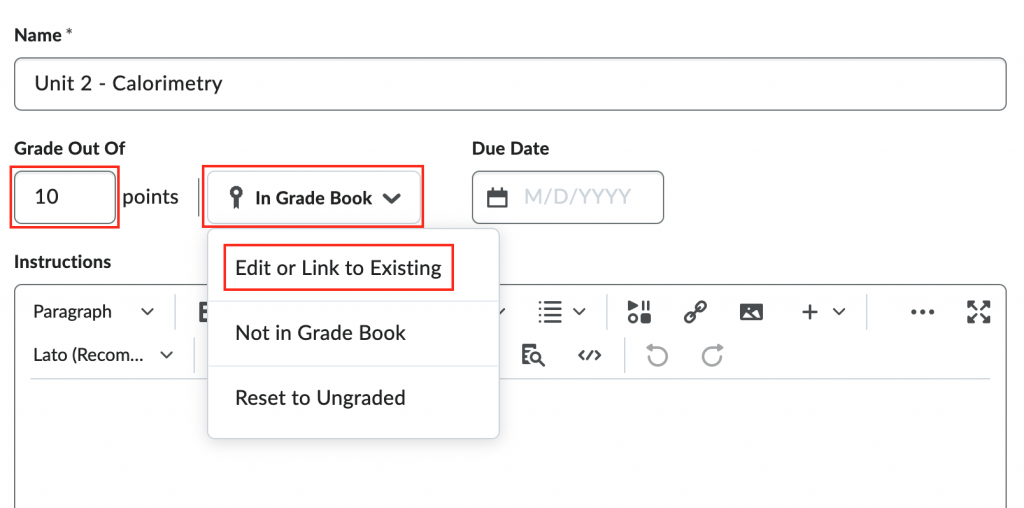
- Click Save and Close. The assignment is now linked to the grade book. If you had already added any written feedback or graded using a rubric, these items will be transferred over to the item in the grade book. No existing evaluation or feedback on assignment submission will be overwritten or deleted.
Note: If you already have a grade category for this type of assignment, under Edit or Link to Existing, as shown in step 3, you can add the new assignment to that grade category (the grade item will be indented to the right under the grade category in the drop-down menu for Link to an existing grade item). This is helpful if, for example, you have an entire assignment category that is 20% of a student’s overall grade. When you add a new assignment, it’ll split that 20% evenly among all the assignments automatically, including the new one.
Associating a grade book item with a new assignment
- In your Brightspace course, navigate to your Assignments page (Course Tools > Assignments) and click New Assignment.
- Scroll down to Grade Out Of box and add a score.
- You now have the choice to link to an existing grade item or create a new one. If you have already created a grade item for this assignment then click Link to an existing grade item and select your grade item from the drop-down menu. Otherwise, select Create and link to a new grade item.
Associating quizzes with the grade book
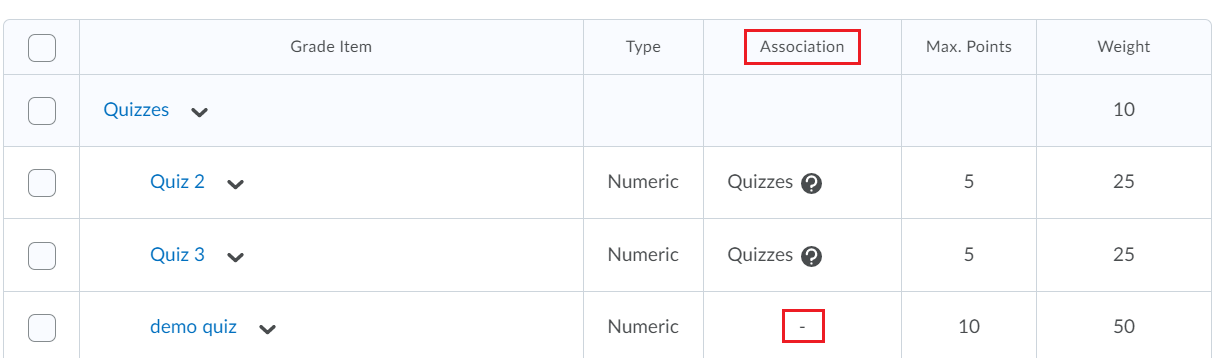
- If you’re not sure if a quiz is associated with the grade book, you can check by navigating to Grades > Manage Grades tab. Check for associations between items and the grade book. In the below screenshot, you can see that Quiz 2 and 3 are properly associated with the grade book but demo quiz is not.
- Navigate to your Quizzes page (Course Tools > Quizzes) and select the drop-down menu beside the quiz you would like to associate with the grade book. Click Edit.
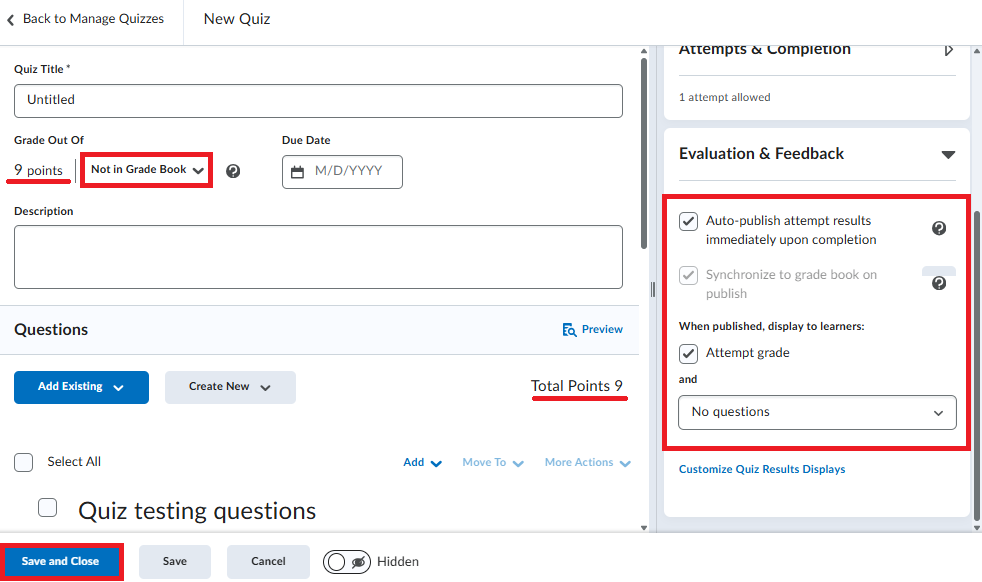
- The Grade Out Of point total under the quiz title will automatically adjust based on the point total of your quiz questions. Please ensure that your question point totals are correct before proceeding.
- Click on Not in Grade Book and select Edit or Link to Existing if you already created a grade item or Add to Grade Book to set up a new grade item.
By default, the following quiz Evaluation & Feedback options are selected: Auto-publish attempt results immediately upon completion (auto-graded questions, such as multiple choice, are automatically graded and learners’ results are displayed after completing the quiz), Synchronize to grade book on publish (pushes the quiz grade to the grade book if linked to a grade item), and When published, display to learners: Attempt grade and No questions (learners will only see their quiz score). - Select Save and Close.
Disassociating and deleting grade items for activities
If your grade item is linked to an assessment, then you will need to unlink the assignment or quiz that is associated with the grade item before you can delete it. If there is no associated item then skip to step 5.
- In your Brightspace course, click Grades in the navigation bar. Go to the Manage Grades tab.
- To unlink an assessment from its grade item, select the drop-down menu of the item you wish to delete, and click Edit. Look for the type and title of the associated item. The assessment type is listed right before the quotation marks (the example in the screenshot below is for a quiz).

- Go to the associated assessment item in the appropriate Brightspace tool from the Course Tools drop-down menu. From the assessment drop-down menu, click Edit.
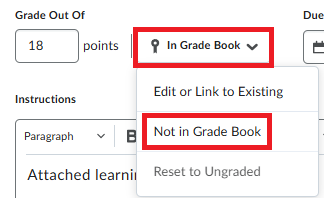
- In the In Grade Book drop-down menu, select Not in Grade Book and save your changes.
- Navigate to Grades and click the Manage Grades tab.
- Click on the drop-down menu for More Actions and select Delete. Select the item using the checkbox to the left of the item and click Delete at the bottom. A pop-up will appear asking you to confirm the deletion. Select Delete again to finalize your choice.
This short video will show you how to delete grade items that are associated with the gradebook.
For more information on grades, please refer to the Setting up the Gradebook section on Teach Anywhere.