How to publish saved quiz feedback so that it will appear in your gradebook for students?
- Once you grade the written answer part of the quiz and save it as a draft, as shown in the picture.
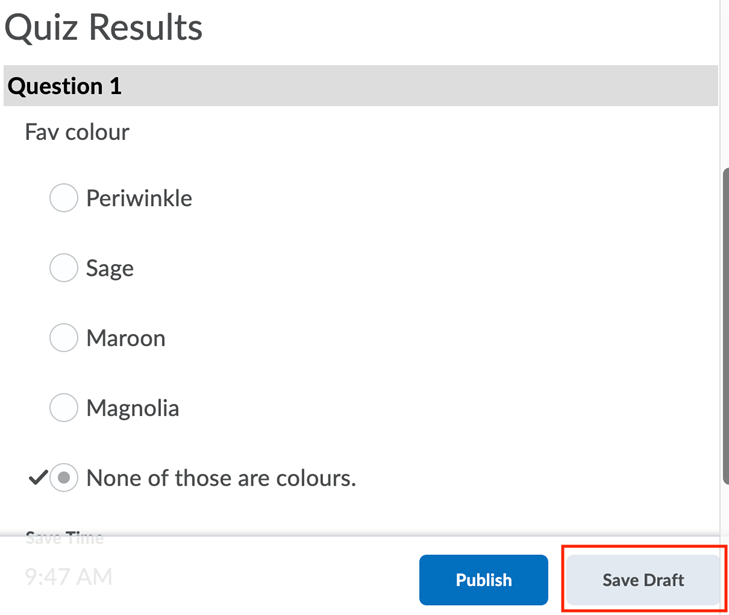
2. Navigate back into “Quick Eval” you will see your quiz listed as shown below (minus the new attempts).

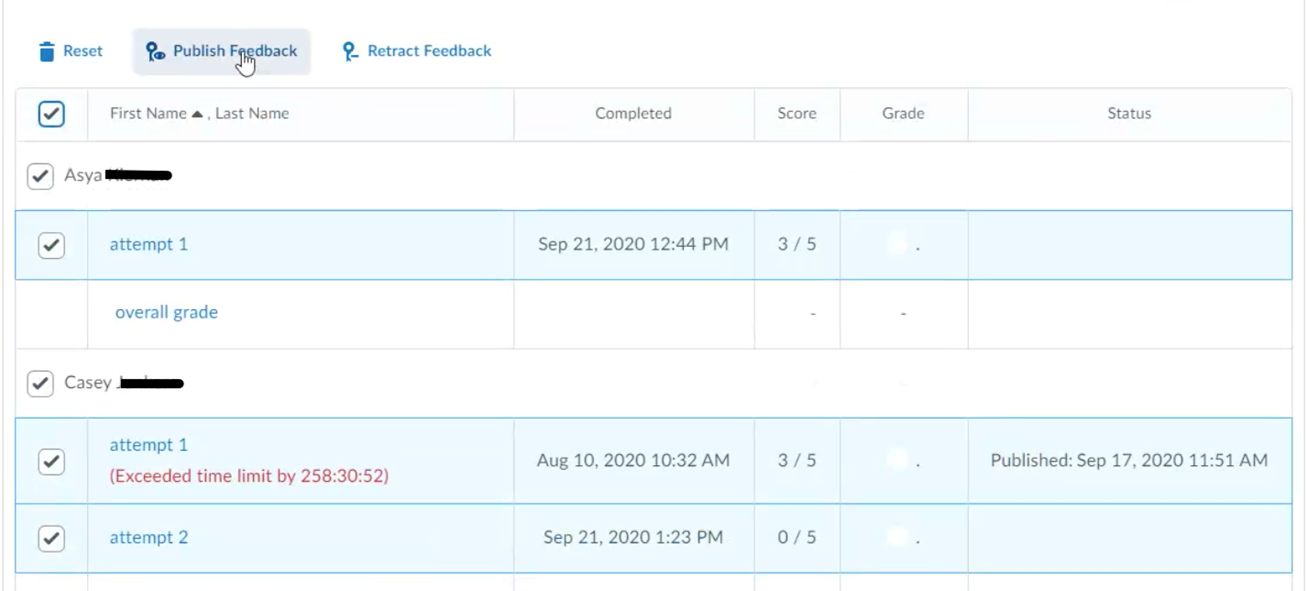
3. Click on the Submission list, there you can see all the drafts of the attempts you have graded.

4. If you tick the box in the top left corner beside “First Name” that will select all students. You can then click the “Publish Feedback” button to get these grades to show up in the gradebook for all selected students.
The image below shows all the different ways grade items submissions can appear within the gradebook.

- An attempt has been made by a student, but it has yet to be graded in any capacity
- An attempt has been made by a student, it has been graded and saved as a draft, but not yet published
- An attempt has been made, it has been graded, and published
- No attempt has been made