How do I publish all quiz grades to the gradebook?

When you are finished providing feedback drafts for submissions, you can publish grades and feedback to all students at once.

  1. Click Quizzes in the drop-down menu for Course Tools in the navigation bar.
  2. For your quiz of interest, click on the drop-down menu and select Edit.
  3. In the Assessment tab, ensure your quiz is associated with a grade item. Check the box for “Synchronize to Grade Book.”

    Synchronize to grade book option selected in quiz assessment tab
  4. Click Save and Close.
  5. In the drop-down menu for the same quiz, select Grade.
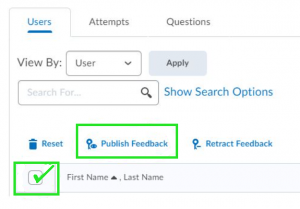
  6. Check the box that selects all users in the course (next to First Name, Last Name).
  7. Click Publish Feedback.


Image showing the Publish feedback option and where to click


About this post

Tags:

This page was last updated:

November 16, 2020

We acknowledge and respect the Lək̓ʷəŋən (Songhees and Xʷsepsəm/Esquimalt) Peoples on whose territory the university stands, and the Lək̓ʷəŋən and W̱SÁNEĆ Peoples whose historical relationships with the land continue to this day.

jQuery(function ($) { //open toggle on button click $('a.open-toggle').on('click', function(event){ $('#toggle3.et_pb_toggle_2 .et_pb_toggle_title').click(); }); });